Help · Guide
Rebrand safely with a staging brand
Refresh your brand from a new URL, test it in a staging copy, then cut over to live, with full rollback.
Why a staging brand
A rebrand shouldn't disrupt your live calendar. Instead of editing your live brand in place, BrandOps9 creates a staging copy: a parallel brand you can rework and test while the current brand keeps running and publishing.
Create the staging brand
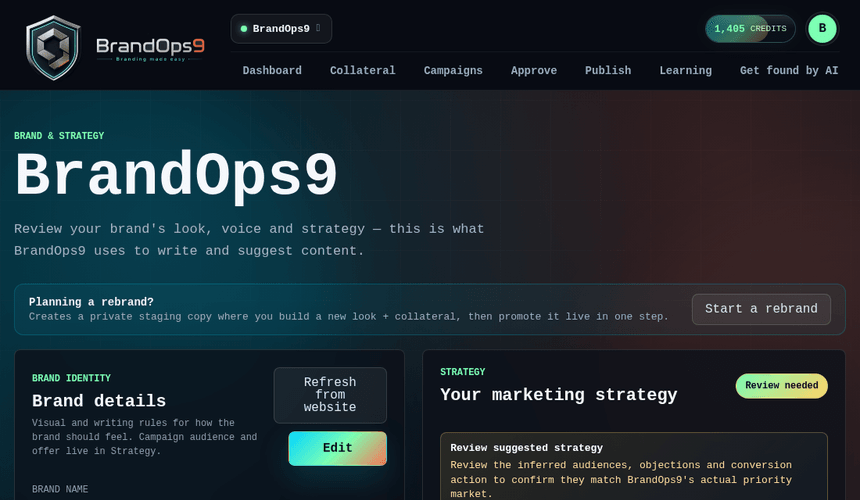
Start a rebrand and paste the new website URL. BrandOps9 re-extracts a fresh brand profile from that site into a staging copy. (Rebranding is the one place a new URL is read; your live brand's URL isn't touched.)
Update and test the new look
- Retune the profile, colours, tone of voice and go-to-market strategy on the staging brand.
- Generate posts and documents against it, even run Autopilot, to see the new brand in action. None of this touches your live brand.
Cut over to live
When you're happy, promote the staging brand to replace the live one, either immediately or scheduled for a date. Your content and calendar carry across, and the credit ledger is preserved.
If something's wrong
Every identity change is snapshotted. If the new look isn't right, roll back to a previous identity from the brand's history, or cancel a scheduled cutover before it runs.