
Help · Guide
Your media library and brand kit
Reuse images without duplicates, tag and search them, apply your brand kit, and control what clients see in the portal.
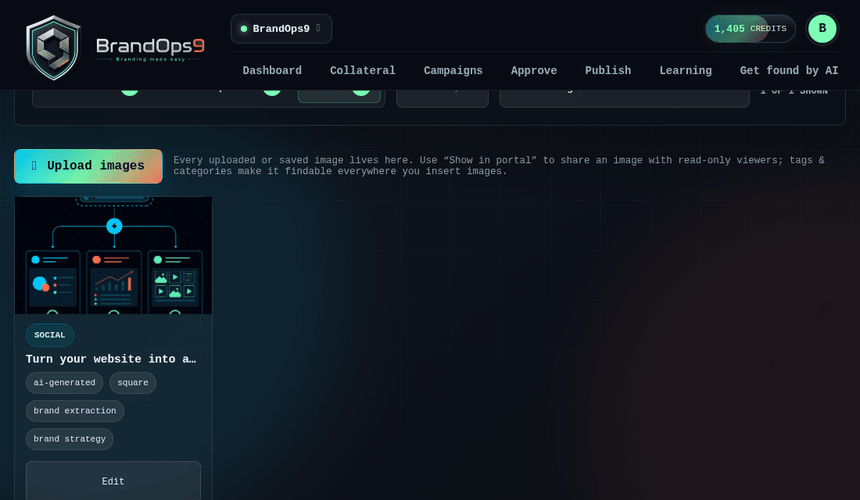
What's in your library
The media library is a curated gallery of your brand's images, living as a tab in the Curated content area. It holds the images you intentionally add plus the images from content you've approved, not every working draft image, so it stays clean.
Reuse without duplicates
Pick a library image for any post or document and BrandOps9 reuses it by reference; it never saves a second copy. The same picture only ever appears once in your library.
How images get into the library
- Upload your own (PNG/JPG/WEBP/GIF).
- Approve content: when you approve a post or document (manually or via Autopilot), its newly-created image is saved to the library automatically.
- Draft and working images are kept out until the content is approved.
Tag, search and share
Each image can carry a category, tags and a description, so you can find it fast. The “Show in portal” toggle controls whether a given image appears in the client-facing Curated portal, so clients only ever see what you've curated.
Apply your brand kit
From the editor you can drop your logo, brand colours and a caption onto any image in one click, as a lower-third banner or a corner badge. It applies live and is fully revertible; your original is always one click away.