Help · Guide
Edit, version and approve documents
How collateral editing works: modify into new versions, move between them, revert to an earlier one, and approve the version that goes live.
Why documents are versioned
Every long-form document (a one-pager, case study, checklist…) keeps a full version history. When you change a document you never overwrite the published copy. BrandOps9 branches a new draft, so the version your audience sees stays put until you decide to replace it.
This is the same approve-a-version model your social posts use, so editing a document feels familiar.
Modify a document
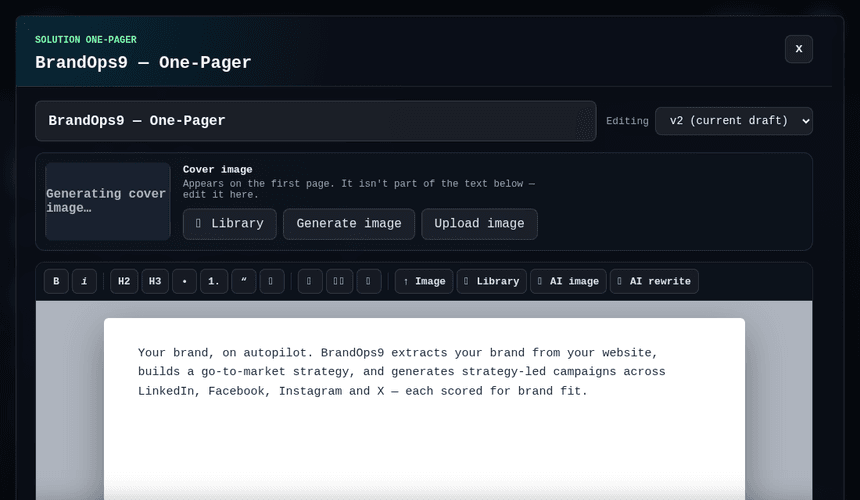
Open a document from the Collateral library and click Modify. BrandOps9 opens the editor on a fresh draft branched from the live version (or re-opens your in-progress draft if you already have one).
- Edit the text in the visual editor, change the name in the title field at the top, and add or regenerate the cover image.
- Use “✦ Fix the QA findings” to have the AI rewrite the draft to resolve its quality-check issues.
- Click Save document. Your edits are saved to the draft; the live version is untouched.
Move between versions and revert
While editing, the “Editing v1 / v2 / v3 (live)” dropdown at the top lets you move between versions.
- Pick an earlier version to load its content back into the editor, a clean way to revert and re-edit from an older draft.
- Saving keeps the whole history intact; nothing is lost.
Approve a version to go live
A draft isn't public until you approve it. Approve the version you want and it becomes the live one. The public share link and the PDF/Word exports always follow the approved version.
To publish an earlier version as-is, select it in the dropdown and choose “Make this version live”.