
Help · Guide
Autopilot: hands-off publishing, explained
How Autopilot generates, approves and schedules your content: what the quality bar does, why it sometimes pauses, and how to fix it.
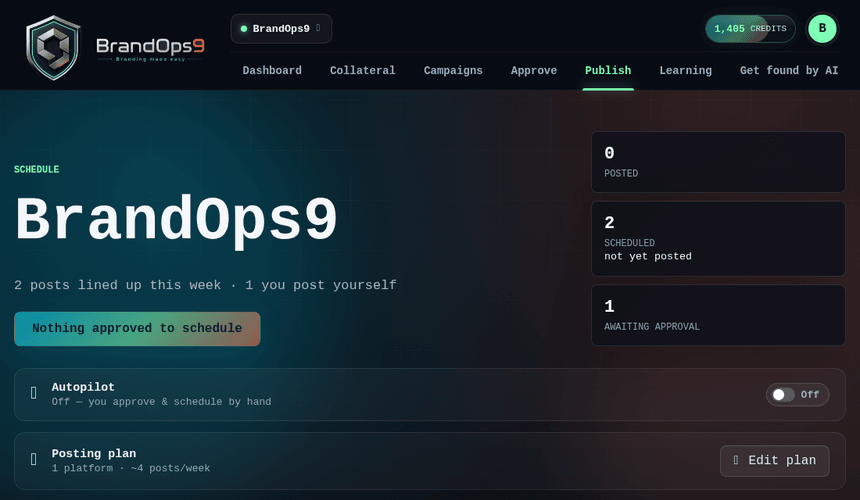
What Autopilot does
The first time you turn on Autopilot, all three steps start enabled. After that you can switch Generate, Approve and Schedule on or off independently. About every 30 minutes it runs whichever steps you enabled, in order:
- Generate: when your upcoming queue is below your target, it writes fresh, on-brand drafts from your brand profile and go-to-market strategy.
- Auto-approve: it approves any draft whose brand-quality (QA) score clears the bar you set.
- Schedule: it places approved posts into the next open slots in your posting plan, soonest first, so a posting day is never left empty.
The quality bar (auto-approve score)
Every generated post gets a brand-quality score from 0–100 that measures how well it matches your brand voice, strategy and proof. When Auto-Approve is on, Autopilot only approves posts that score at or above your threshold. Auto-Schedule can separately schedule anything already approved, including posts you approved manually.
You choose the threshold in Publish → Autopilot → Configure: 90 (strict, only top-scoring posts), 80 (balanced, the default) or 70 (lenient). A higher bar means higher quality but fewer posts pass automatically.
Reading the coverage numbers
The Autopilot banner shows its queue health: how many approved/scheduled posts you have versus your queue target (e.g. "5 of 7 posts queued ahead", reaching "✓ Queue topped up" when full). That is the number Autopilot actively drives.
Inside Configure you'll also see calendar coverage per platform over the next 30 days. This reflects how often you've chosen to post in your plan, which can be larger than the buffer Autopilot keeps ahead. Raise your queue target (or trim your cadence) if you want the calendar filled further out.
Why Autopilot paused, and how to fix it
If Auto-Generate and Auto-Approve are both on but generated drafts keep scoring below your quality bar, they cannot be approved automatically. Rather than quietly pile up drafts or burn credits forever, Autopilot pauses itself after five misses and emails the workspace owner.
You have two ways to get it running again:
- Improve the score: sharpen your brand so generated content lands higher. Tighten your tone of voice, add concrete proof points and differentiators, and make your audience and core offer specific in your GTM strategy. Better inputs produce higher-scoring posts.
- Lower the auto-approve score: if the drafts are actually good enough for you, drop the threshold (e.g. from 90 to 80) in Publish → Autopilot → Configure so they pass.
Credits, safety and control
Generating posts uses credits; approving and scheduling do not. If your balance runs low Autopilot pauses and emails you with a link to top up, and it warns you before you hit zero.
Nothing is hidden: auto-generated posts are marked with a ⚡ badge wherever they appear, and you can review, edit or reject anything before it goes out. Turn Autopilot on or off any time from the Publish page.